


Showing posts with label Hania's Designs. Show all posts
Showing posts with label Hania's Designs. Show all posts
Friday, May 8, 2015


Saturday, November 22, 2014

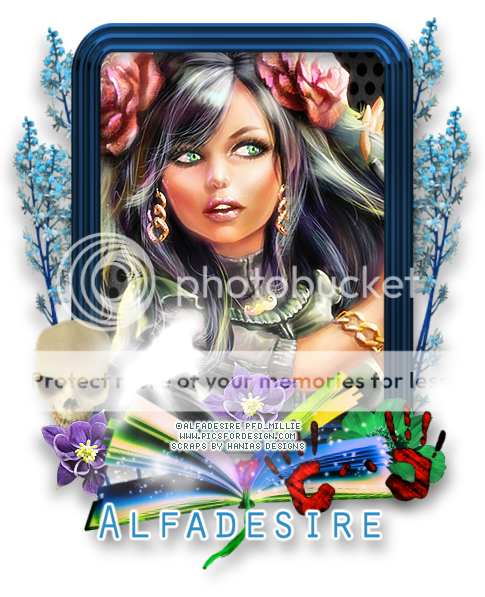
This tag was made with awesome work of Elias Chatzoudis
I used lovely PTU Sadie by Hania's Designs
Template 719

You can download it HERE
Saturday, October 11, 2014

This tag was made with Queen tube by Roman Zaric
I used matching kit by Hania's Designs
Template 697

You can download it HERE
Wednesday, October 1, 2014


Tuesday, September 9, 2014

Monday, September 1, 2014
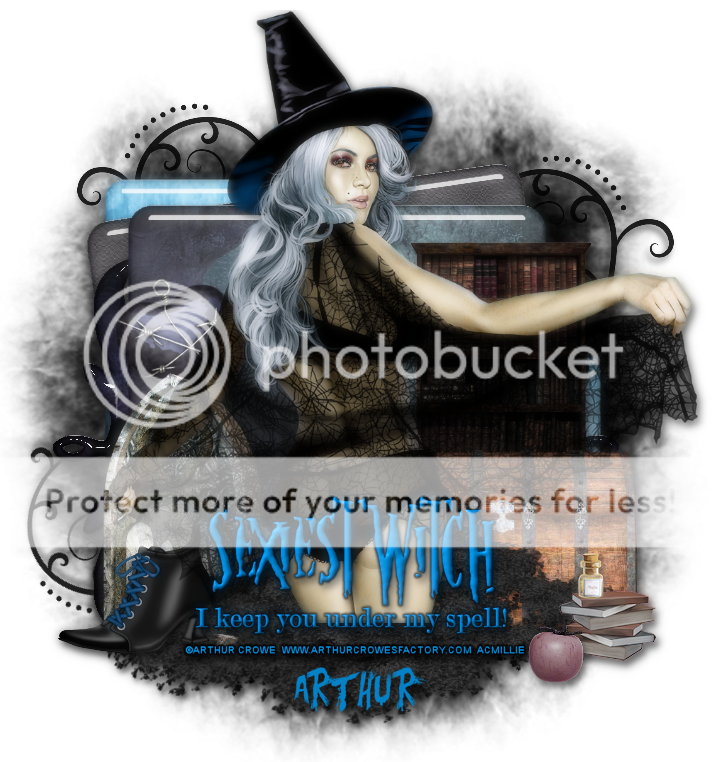
This tag was made with SEXY SUPER WITCH by Arthur Crowe
I used matching kit by Hania's Designs
BOTH COMING SOON to Arthur Crowe's Factory
Template 676

You can download it HERE
Wednesday, August 13, 2014


Tuesday, August 5, 2014


Tuesday, July 15, 2014


Monday, July 7, 2014


Friday, April 18, 2014

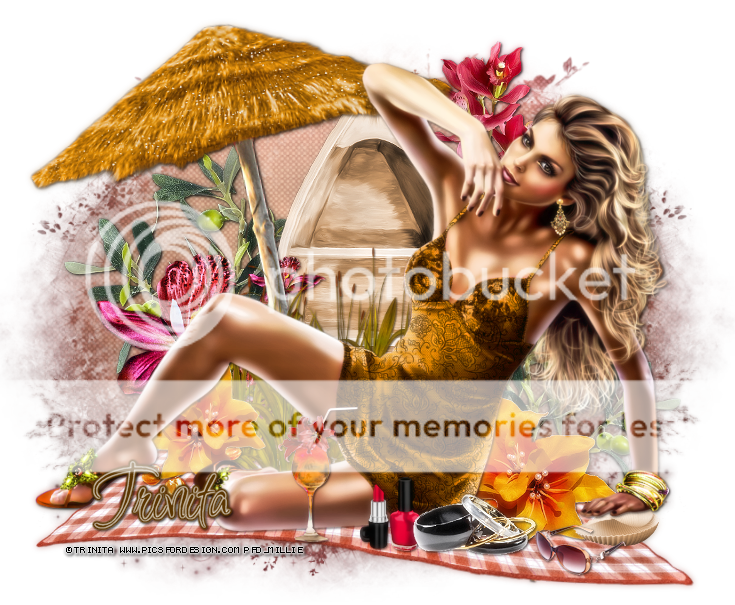
This tag was made with lovely "Guardian Angel" by Trinita
I used awesome "Kitty Angel" kit by Hania's Designs
Template 569

You can download it HERE
Thursday, April 17, 2014

*click on image to view full size*
PTU Lady of the Darkness
This tutorial was written by me on April 17, 2014.
It was made out of my own creation and any similarity is purely coincidental.
I used pspx5 but any version should work without problems.
If you're doing this tutorial you must have good psp knowledge and be familiar with the tools.
Let's get started!
Artist: Lady Of Darkness by Trinita
Scrapkit: Lady of Darkness kit by Hania Designs
Mask: 34 by me HERE
Font: Satisfaction
*open your mask and minimize in your workspace*
File - New - 700x700 - flood fill w white
Open 99 - resize by 70% - c/p as new layer - move down some
Click inside your frame w magic wand - expand by 5 - new layer
Open paper8 - c/p into selection - deselect
Move paper under frame
On frame layer - apply Lokas 3D shadow w following settings:
Blur: 25 Transparency: 70
Angle X: 0 Angle Y: 0 Angle Z: 0
Zoom: 100 Offset X: 5 Offset Y: 5
Perspective: 40 Color: Black
Hit Okay
Apply these settings a second time.
Open 33 - resize by 50% - drop shadow
Open 40 - resize by 50% - sharpen - drop shadow
Open 52 - resize by 50% - place to the right - drop shadow
Open tube - resize to fit your tag
Xero - porcelain - change blue channel to 0 - hit ok
Open 79 - resize by 50% 2x - sharpen - place to the right
duplicate - mirror - merge down - drop shadow
Open 80 - resize by 50% 2x - sharpen - place to bottom left - drop shadow
On background layer
Click on background with magic wand - new layer
Open paper of choice - c/p into selection - deselect
Layers - New mask layer - From Image
Find your mask in source window - hit ok
Merge group
Open 50 - resize by 50% - sharpen - place to right
duplicate - mirror - merge down - drop shadow
Open 72 - resize by 50% - place to bottom left
duplicate - mirror - merge down - drop shadow
Open 90 - resize by 50% 2x - sharpen - place to the right
duplicate - mirror - merge down - drop shadow
Delete your background layer
Merge visible
Add credits and name
Friday, October 4, 2013


Monday, September 23, 2013
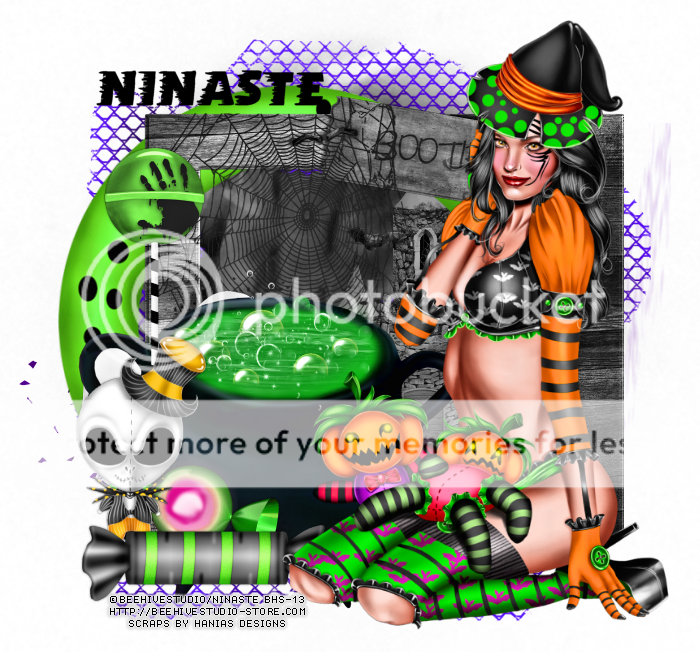
*click on image to view full size*
PTU Naughty Witch
This tutorial was written by me on September 23, 2013.
It was made out of my own creation and any similarity is purely coincidental.
I used pspx5 but any version should work without problems.
If you're doing this tutorial you must have good psp knowledge and be familiar with the tools.
Let's get started!
Artist: Coraline by Ninaste
Scrapkit: Lolly by Hania Designs
Mask: any of choice
Font: Annie's Windy
*open your mask and minimize in your workspace*
*c/p will be copy and paste as new layer unless noted*
File - New - 700x700 - flood fill w white
Open 63 - c/p
Open 68 - c/p - place to bottom
Open 9 - resize by 50% - place to the right some
Open 88 - resize by 85% - sharpen - c/p - place to left
Open 86 - resize by 50% - c/p
Draw a rectangle around frame w selections tool
New layer - c/p pp5 into selection - deselect
Move under frame layer
Add drop shadow to frame
Open 82 - place to left
Open 51 - resize by 50% - c/p - place to left
Open 44 - place to left some
Open 5 - resize by 75% - c/p - place to bottom left
Open 3 - c/p - place to bottom left
Open tube - resize to fit your tag - c/p
Place to the right
Delete background merge visible - add credits and name

Saturday, March 23, 2013
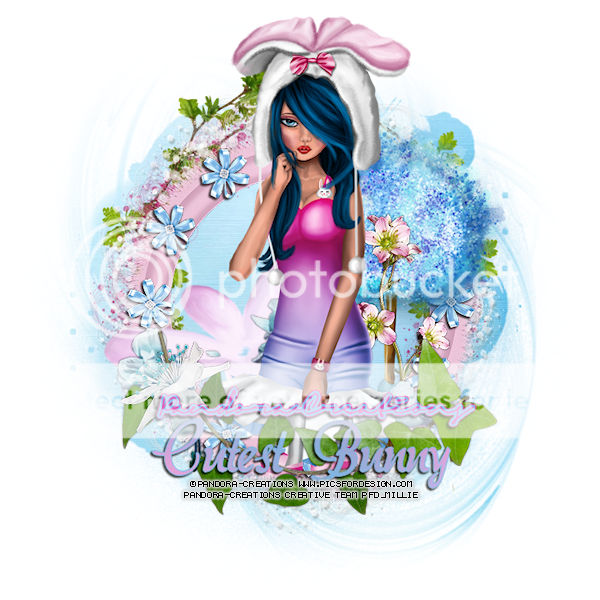
*click on image to view full size*
PTU Cutest Bunny
This tutorial was written by me on March 23, 2013.
It was made out of my own creation and any similarity is purely coincidental.
I used pspx2 but any version should work without problems.
Let's get started!
Artist: Pandora-Creations
Scrapkit: Cute Bunny by Hania's Designs
Mask: circle mask of choice
Font: Signerica
*open your mask and minimize it in your workspace*
File - New - 700x700 - fill with white - rename background
Open paper5 - c/p as new layer
Layers - new mask layer - from image
Find mask in Source Window - create from Source Luminance - hit ok
Merge group - resize mask by 115% - sharpen
Open ele20 - c/p as new layer
Open ele98 - resize by 80% - sharpen - c/p as new layer
Open ele71 - c/p as new layer - place to the bottom left
Open ele93 - resize by 50% 2x - sharpen - c/p as new layer
Effects - Mura Meister - Copies w following settings:

Open ele30 - resize by 50% - c/p as new layer - place to bottom some and left
Open ele38 - resize by 60% - c/p as new layer - place to the right
Open ele53 - resize by 50% - c/p as new layer - place to the right
Open your tube - resize by 50% 2x
With your selection tool draw around the tube so that you have half selected
c/p as new layer above frame layer - resize to fit tag
Open ele59 - c/p as new layer - place to bottom - duplicate - change blend to screen
Open ele21 - resize by 65% - sharpen - c/p as new layer - place to left
Write Cutest Bunny - foreground blue from tag - background pink from tag
Background - gradient - linear - foreground/background - repeats 1 - angle 45
Aka Dora font - STroke of 1 - add drop shadow of liking when done
Place it to the bottom
Delete background layer - merge visible - resize to 600x600
Add credits and your name
Thank you for trying my tutorial :)
Sunday, March 17, 2013

*click on image to view full size*
PTU Treat Me Right
This tutorial was written by me on March 17, 2013.
It was made out of my own creation and any similarity is purely coincidental.
I used pspx2 but any version should work without problems.
Let's get started!
Artist: Pandora-Creations
You can find this lovely tube "Bunny" in PicsForDesign
Scrapkit: PTU Estrella by Hania's Designs
Plugins: Xero - radiance
Font: Angilla Tattoo
File - New - 600x600 - fill with white - rename background
Open ele70 - resize by 65% - sharpen - c/p as new layer
Draw a circle with your ellipse tool a bit bigger than the inside of the frame
Convert to raster layer - move under frame
On your material palette make the following changes:
Background color: #bf4f79 Foreground color: #e6a6c0
Make background into a gradient with following settings:
Style: Linear - Angle 36 - Repeats 1 - invert checked
Click inside the circle you drew with your magic wand - new layer
Flood fill with gradient - deselect for now
Open your tube - c/p as new layer - place face inside of frame
Click inside circle you drew with magic wand - on tube layer invert - delete - deselect
On tube layer - xero - radiance - default settings
Change blend mode to luminance (L) - change opacity to 40 - duplicate
Change blend mode to screen - opacity to 100
Add a drop shadow to your frame - close background layer - merge visible
Make your background layer visible again
On merged layer
Open ele 58 - resize by 65% - c/p as new layer
Open ele 55 - resize by 50% - sharpen - c/p as new layer - place to left
Duplicate and move it up some - merge down - duplicate - mirror
resize by 85% - move down some
Open ele28 - resize by 50% - sharpen - c/p as new layer - place to left
Rotate to the left a bit with your deform tool
Open ele67 - resize by 50% - sharpen - c/p as new layer - place to bottom left
Open tube - resize it to fit your tag - c/p as new layer - place to the right
Duplicate your tube - xero - radiance - change blend to screen - opacity 78
Merge down - add drop shadow
On background layer
Open ele 18 - c/p as new layer
Open ele57 - resize by 85% - sharpen - c/p as new layer
Open ele14 - resize by 50% - sharpen - c/p as new layer - place to the top
Duplicate - change blend mode to screen - add drop shadow
Open ele31 - resize by 65% - sharpen - c/p as new layer
Place to the left - duplicate - mirror - merge down
Duplicate - change blend mode to screen - merge down - add drop shadow
Delete background layer - merge visible - add credits and your name.
Thanks for trying my tutorial :)
Subscribe to:
Posts
(Atom)