


Showing posts with label Scott Blair. Show all posts
Showing posts with label Scott Blair. Show all posts
Thursday, April 25, 2019

-CT KARMALIZED SCRAPS-
Artwork by PinupToons at CDO HERE
Java Obsession Kit by Karmalized Scraps HERE

Artwork by Scott Blair
(unsure where he sells at now, tube from MPT)
-SNAGS-
Blogger is not letting me upload the snags.
You can grab them on Fotki HERE
Do not claim as your own.
Do not change in any way.
Thanks for stopping by!
Saturday, April 20, 2013
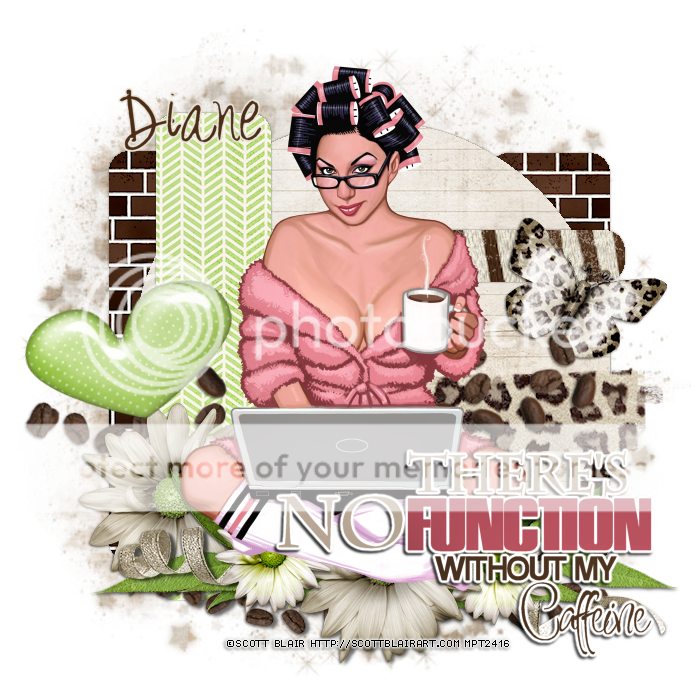
*click on image to view full size*
PTU Coffee Disfunction
This tutorial was written by me on April 20, 2013.
It was made out of my own creation and any similarity is purely coincidental.
I used pspx2 but any version should work without problems.
Let's get started!
Artist: Scott Blair
*got this tube when he was selling in MPT*
Scrapkit: Wild About Coffee by Candy's Treats
Template: 03 by me in the ScrapYourHeartOut Blog Train for April
You can find it HERE
Mask: any of choice
Plugins: Eyecandy - gradient glow
Font: Digs My Heart
*open your mask and minimize it in your workspace*
Open Template03 - duplicate - close original
Make your background visible
Change canvas size to 700x700
Flood fill background w white
Go to layer 1 - click in it w magic wand
Open paper13 - c/p as new layer - invert - delete - deselect
Duplicate layer - mirror - move to the right some more
Go to layer 2 - click in it w magic wand
Open beige gun paper2 - c/p as new layer - invert - delete - deselect
Open bg3 - c/p as new layer - place to right - rotate it left a little w deform tool
Merge layer 4 down to 3 - click on both strips w magic wand
Open paper11 - c/p as new layer - invert - delete - deselect
Go to layer 5 - click in it w magic wand
Open paper14 - c/p as new layer - invert - delete - deselect
Open cluster4 - c/p as new layer - place to the bottom
Open tube - c/p as new layer - move down some
Open butterfly - c/p as new layer - place to the right
Open scatter - c/p as new layer
Open flower11 - resize by 50% - sharpen - c/p as new layer - place to left
Open ele6 - c/p as new layer - place to the left
Go to layer 6 - move to the bottom right
Effects - Eye Candy - Gradient Glow
Set glow to 3.00 and set color to fat - hit ok
Add drop shadow
Go to background layer - click in it w magic wand - new layer
Open paper14 - c/p into selection - deselect
Apply your mask - merge group
Delete background layer - merge visible - add credits and your name
Thanks for trying my tutorial
Wednesday, November 28, 2012

*click on image to view full size*
This tutorial was written by Millie on November 27, 2012.
Any similarity to any other is purely coincidental.
I used pspx2 and assume if you are trying this you are knowledgeable in psp.
Let's begin!
FTU Merry Xmas
Artist: Scott Blair
I bought this tube when it was sold in MPT.
He is not selling tubes anywhere at the moment.
Scrapkit: Ginger Christmas by Gimptastic Scraps
Mask: any of choice
Fonts: I used Santa's Big Secret
I added drop shadow of 1 1 50 3 throughout
You can add that one or any of your choice
New - 700x700 - flood fill with white
Open frame 4, resize 75%, sharpen, c/p as new layer
Rotate your frame to the left with your deform tool
Open sign, resize by 65%, sharpen, c/p as new layer, place to left
Open tree, c/p as new layer, move to the right some
Open snowman, resize by 90%, place in middle of frame
Open your tube, c/p as new layer, place to the left some
Open gift, resize by 50%, c/p as new layer, place in front of tube
Open gift2, resize by 65%, c/p as new layer, place behind dog
Open mittens, resize by 50%, c/p as new layer, place top left
Open snowflake2, resize by 50% 3x, sharpen, c/p as new layer
Duplicate 3x and place in 3 different locations of your liking
Go to background, open paper 6, c/p as new layer, apply your mask
merge group, delete background layer and merge visible
Crop to your liking, add your credits and your name
Thanks for trying my tutorial :)
Tuesday, November 27, 2012

This tag was made using work of Scott Blair.
I used PTU Scrapkit Ginger Christmas by Gimptastic Scraps.
Made some snags for you all.


Subscribe to:
Posts
(Atom)